

Start with the video, not a blank box.
CreatorHat's AI YouTube description generator uses a transcript of your local video. You do not have to wait for YouTube captions or write a separate summary to explain the footage to another tool. Transcription and writing happen on your Mac.
Place the export in Movies or Downloads, or choose its folder in the CreatorHat app. Upload it through YouTube Studio in Safari. When the filename matches, CreatorHat starts transcribing; its local-video controls let you select the file if needed. After transcription, the description suggestion appears beside YouTube's description field.
When available, public YouTube autocomplete and search results help with wording. If that research cannot be reached, CreatorHat can still draft from the transcript and filename. Read the full AI YouTube SEO workflow.
A real draft still needs an editor.
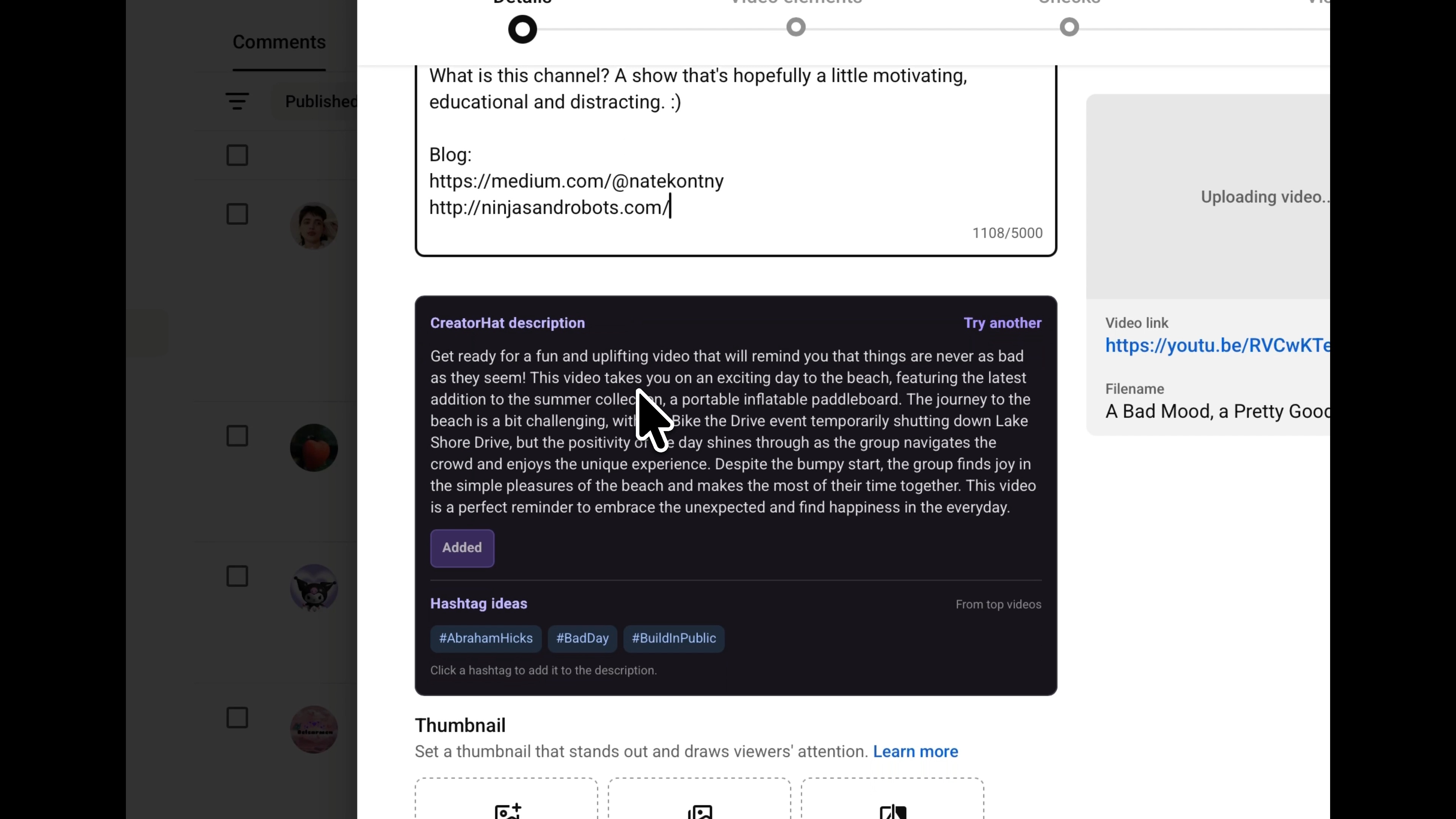
The recorded demo uses my vlog, "A Bad Mood, a Pretty Good Day." The draft mentions a beach trip, an inflatable paddleboard, and Bike the Drive. It also opens with "Get ready for a fun and uplifting video." Cut that generic opening and lead with the concrete subject.
That is the useful editing pass: keep details the video supports, remove promises that say little, and correct anything the transcript or model got wrong. Do not mistake a fluent paragraph for a checked summary.
Keep the links you already added.
-
Review the generated paragraph.
Check the draft against your video. If the angle is wrong, click Try another for a new version. The AI can miss visual details or parts of a long video.
-
Click Add to description.
CreatorHat inserts the generated copy above the description already in Studio. Your existing links and channel boilerplate stay below it. Review the combined text in YouTube's field before saving.
-
Make the opening specific.
Edit the text directly in Studio. Explain what the viewer will see before the recurring channel links. YouTube recommends a unique description for each video, with relevant wording near the beginning.
-
Check a replacement before applying it.
Applying another generated version replaces the earlier generated portion when CreatorHat can still identify it. If you have manually rewritten that portion, inspect the field for duplicates. Applying copy does not publish the video.
Before you start
Can I generate a description from a YouTube link?
This guide covers generating from your local upload in YouTube Studio. CreatorHat also has transcript-based Studio tools for existing videos when a transcript is available, but this page is not a paste-a-link web generator.
Will this overwrite my channel links?
Add to description puts the suggested copy before existing text. Review the field afterward, especially when replacing a draft you have edited by hand.
Does the AI see everything in my footage?
The writing uses speech transcription and filename context, not a visual understanding of every frame. Check visual events, names, and any important details missing from the spoken content.
Is CreatorHat free?
CreatorHat costs $29.99 a year after a 7-day trial. The trial is a subscription trial, not an unlimited free web generator.
Which Mac do I need?
CreatorHat requires macOS 26 or later and Safari. AI writing also needs a compatible Apple silicon Mac with Apple Intelligence enabled and available in your language. Enable the extension and allow it on YouTube and YouTube Studio.