
AI YouTube title generator for Mac
CreatorHat suggests YouTube titles inside Safari using the video you are uploading. Transcription and writing run on your Mac with Apple Intelligence.

$29.99 a year after a 7-day trial. macOS 26+ and Apple Intelligence required.
One upload. Different angles.
Actual title suggestions
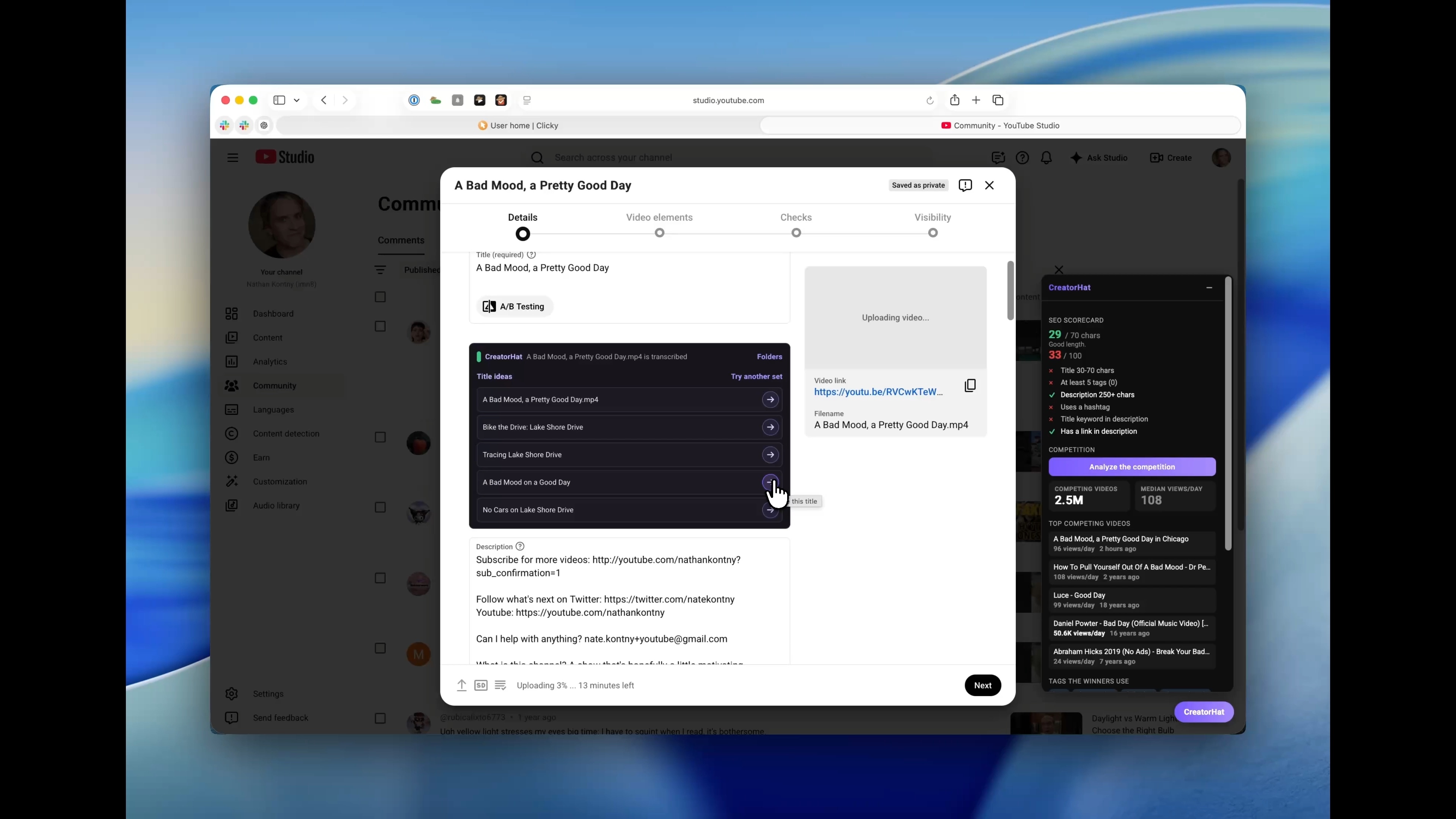
- Bike the Drive: Lake Shore Drive
- A Bad Mood on a Good Day
- No Cars on Lake Shore Drive
Keep the part that fits your video.
The recorded demo uses my vlog, "A Bad Mood, a Pretty Good Day." The recorded suggestions refer to Bike the Drive and Chicago's Lake Shore Drive. CreatorHat reads the local video while YouTube is still uploading it.
The suggestions above take different angles on the same footage. "Bike the Drive: Lake Shore Drive" names the event and place. "A Bad Mood on a Good Day" keeps the personal story. In the demo, I apply the latter to the title field.
That is the choice to make on your own upload: what is the video actually about? An event title fits a video about the ride. A personal title fits a vlog about the day. A recognizable search phrase is only useful if the video delivers on it.
Want to check the phrasing first? Use YouTube keyword research in Safari to inspect related searches and the videos already ranking.
From video file to title field.
Give CreatorHat access to your export.
Keep the exported video in Movies or Downloads, or choose its folder in the CreatorHat Mac app. The extension needs access to the local file to transcribe it.
Upload that file in Safari.
Open YouTube Studio and start your upload. CreatorHat starts transcription when the upload filename exactly matches a file it can read. If it cannot find the file, use its local-video controls to select the right one. The Folders button lets you change folder access.
Read the suggestions beside your title.
After transcription, CreatorHat prepares five title ideas. Apple Intelligence uses the video transcript; public YouTube search research helps with phrasing when available. You can ask for another set.
Apply a title, then check it.
Click the arrow beside a suggestion to put it in YouTube's title field. Edit it there if needed. Applying a suggestion does not publish your video.
A few practical answers.
Is this a free YouTube title generator for Mac?
CreatorHat is a paid Mac app with a Safari extension, not a free browser form. It costs $29.99 a year after a 7-day trial. There is no monthly plan or separate AI bill.
Does my video go to an AI server?
CreatorHat transcribes the local video and writes suggestions on your Mac. It does not send the video or transcript to an AI server. Your upload still goes to YouTube, and keyword research contacts YouTube for public search results.
Which Mac do I need?
CreatorHat requires macOS 26 or later. Title generation requires a compatible Apple silicon Mac with Apple Intelligence enabled and available in your language. Enable the CreatorHat extension in Safari and allow it on YouTube and YouTube Studio.
Will a generated title get more views?
No title generator can guarantee views. Read each suggestion against your actual video. Remove invented promises, fix mistakes, and choose wording your video can deliver on.
An AI title generator from your video.
CreatorHat starts with the local video's transcript and filename, then adds relevant public YouTube research when available. You do not have to explain the whole video in a separate prompt. That helps the suggestions name something specific, but you still need to check names and claims against the footage.
An AI-generated title is a choice to edit, not a prediction of clicks. A search-focused tutorial and a personal vlog may need different wording, even when they mention the same event. Pick the angle that matches what someone will actually see.
Before publishing, use the YouTube SEO checklist. Continue with the AI YouTube description generator, or see the complete AI YouTube SEO workflow.
Have a video ready?
Trying this on your next video? Email me at nate+creatorhat@ninjasandrobots.com.
I'm Nate, the developer. I'd like to hear which title you kept and what needed fixing.